
You set up a new Windows 11 PC, sign in to a Microsoft account, and a few minutes later your Desktop, Documents, and Pictures folders are already being uploaded to OneDrive. No explicit confirmation, no summary of what’s going to the cloud. This default behavior raises real concerns about security, file control, and privacy—issues worth understanding before trusting the service with your everyday data.
OneDrive sync and file loss: a double-edged sword
The first pitfall is confusing sync with backup. OneDrive mirrors changes to a local folder in real time to the cloud, then to every device connected to the same account. Delete a file in Windows File Explorer, and it’s also deleted from the cloud and other linked devices.
The most common scenario: a user tidies up their desktop, sends a folder to the local Recycle Bin, then discovers a few days later that the document has also disappeared from their laptop. Sync propagates deletions as well as changes, including destructive ones.
Ransomware that encrypts the contents of the local OneDrive folder will have its corrupted files synced to the cloud. Microsoft offers a feature to restore files to an earlier state, but it’s only available to Microsoft 365 subscribers and covers just the last 30 days.
Files created after the selected restore point may be sent to the Recycle Bin. To understand what OneDrive is for on Windows 11 and where its limitations lie, it’s best to keep these constraints in mind from the start.

“Online-only” files in Windows 11: the placeholder trap
In File Explorer, Windows 11 displays files stored only in the cloud as placeholders. You can see the icon, name, and size, but the actual content isn’t on your drive. This feature, called “Files On-Demand,” saves space but makes you entirely dependent on an internet connection.
Without a network connection, an “online-only” file is inaccessible. You won’t get a warning when you switch to airplane mode or lose your Wi-Fi connection. The file appears in the folder tree, but opening it fails.
The risk increases when you can no longer tell what’s stored locally and what’s remote. Windows 11 doesn’t clearly show each file’s status in every File Explorer view. You think your documents are available, when all you have are empty shells waiting for a network connection.
Check the actual status of your files
File Explorer has a “Status” column that shows whether a document is available locally. Enabling this column in each OneDrive folder makes it easy to spot files that exist only online. You can also force a folder to stay downloaded by right-clicking it and selecting “Always keep on this device.”
Automatic backup of Windows folders: what happens when you turn it off
Windows 11 offers to automatically back up your Desktop, Documents, and Pictures folders to OneDrive. This is often enabled during the PC’s initial setup, sometimes without the user noticing. The problem arises when you turn the feature off.
When you stop backing up a folder, its files don’t automatically return to their usual Windows location. They may remain only in the cloud or in a local OneDrive subfolder. Microsoft recommends checking manually where the files are stored and, if any are available only online, downloading them before changing the settings.
You can end up with empty Desktop or Documents folders on your PC, while your data is scattered between the OneDrive directory and the old local path. Several users report losing access to files after simply unchecking an option in OneDrive settings, because they didn’t realize the physical file path had changed.
Control over personal data and Microsoft privacy
OneDrive stores files on Microsoft’s servers. Encryption in transit and at rest is enabled by default, but whether Microsoft or third parties can access your data through legal processes remains a concern for privacy-conscious users.
- Files stored on OneDrive are subject to Microsoft’s terms of service, which reserve the right to scan content for violations of its rules (such as illegal content). An account may be suspended if an algorithm detects content deemed to violate the terms.
- Personal Vault adds an extra layer of authentication, but the files it contains are still hosted on Microsoft’s infrastructure—not on a server with end-to-end encryption using a key held only by the user.
- OneDrive doesn’t offer client-side encryption by default, unlike some competing services. Microsoft can technically access the contents of stored files.
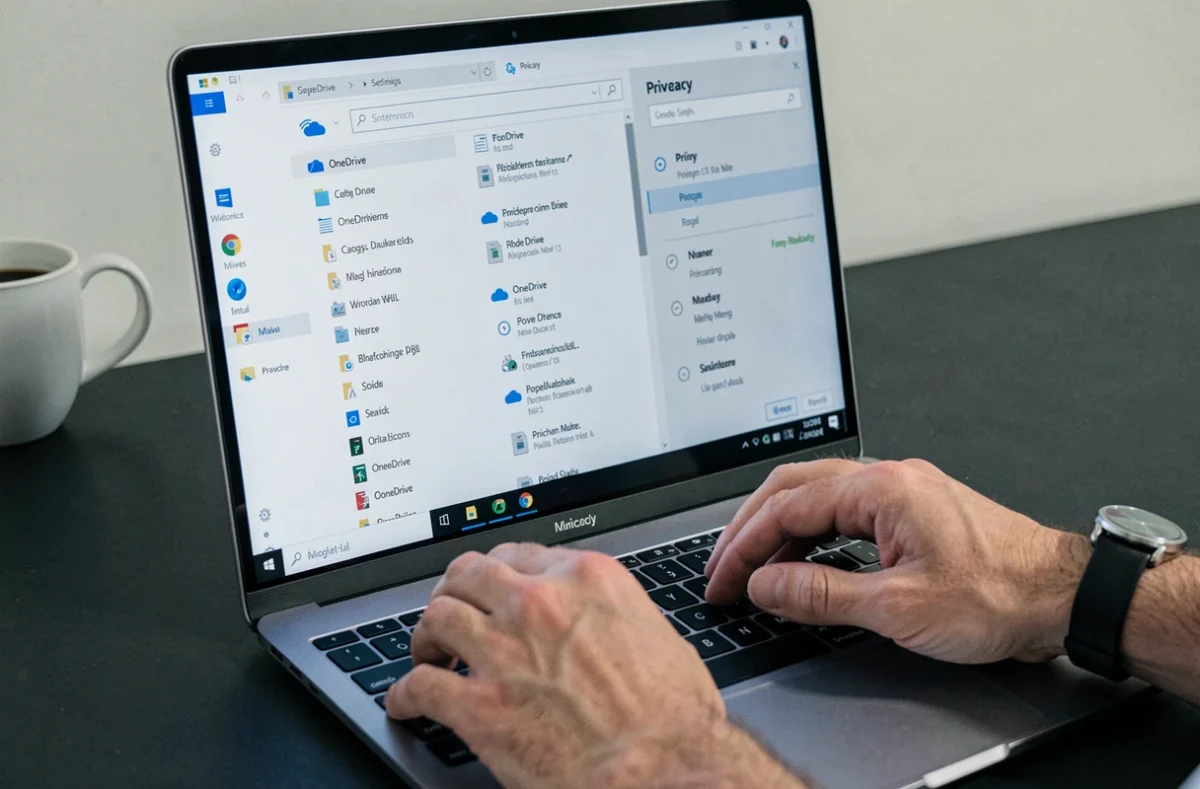
Silent installations and unclear consent
Microsoft has faced criticism for installing OneDrive-related apps without clear notification. On Windows 11, for example, OneDrive Photos was deployed without asking for confirmation. This kind of silent deployment makes it harder to control what’s running on your machine and what has access to your personal files.
Practical steps to reduce OneDrive risks
Using OneDrive every day is compatible with good data management, as long as you don’t treat it as your only backup. A few steps can significantly reduce your exposure to the risks described above.
- Keep an independent local backup (on an external drive or NAS) that isn’t linked to your OneDrive account. Cloud sync is no substitute for a disconnected local copy.
- Regularly check the “Status” column in File Explorer to distinguish files actually stored on your drive from placeholders that exist only online.
- Turn off automatic backup of Windows folders if you don’t want your Desktop and Documents folders redirected to OneDrive. First, move the files manually to their local location.
- Enable multifactor authentication on your Microsoft account, preferably through a dedicated app rather than SMS.
OneDrive remains an effective sync tool when you understand its limitations. The main risk isn’t strictly technical; it comes from confusing sync with backup, a distinction the Windows 11 interface does little to clarify. Staying in control means checking the settings during setup and never relying on a single location for your files.